Twisted Party Controles y entrada
Solo los binds que podemos confirmar de verdad
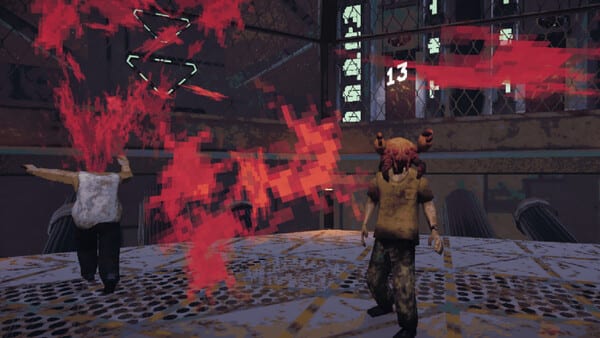
Twisted Party no envía una biblia pública de teclas. Esta página lista los defaults que podemos confirmar por el juego, Steam Input y los desbloqueos de skins. Si un recuadro en otro sitio mapea cada botón Xbox a una acción con nombre, trátalo de suposición hasta que lo verifiques en tu build.
Defaults de teclado que podemos nombrar
El clúster de movimiento es WASD. Shift es la tecla de mantener para ir más rápido cuando Blindshot se vuelve un concurso de choques. E es interactuar. Espacio está asignado por defecto. Escape abre pausa y menús. Esa es la lista honesta. Vampire Squid no ha publicado una tabla que nombre Espacio como salto, E como cada trampa del universo o una tecla de baile dedicada.
Steam Input es el camino de remap soportado. Si WASD o Shift se sienten mal, cámbialo en Steam en vez de esperar un editor in-game que no se anuncia. Los mandos van por la misma capa de Steam Input. No inventaremos aquí mapeos de LB, A, Cruz o Cuadrado.
Emote de baile y Partyman
Partyman se desbloquea cuando bailas en el primer puesto del podio. Es un logro de Steam, no un rumor. El wiki no inventa qué tecla dispara el emote. Tras ganar una noche, quédate en el podio, lanza el baile y espera el unlock. Si el emote no dispara, mira Steam Input por un bind extra que tu layout haya pisado, y prueba en el siguiente primer puesto.
Music Hero es una ronda de clics
Music Hero es ritmo y clics de flecha. Las reseñas lo llaman Guitar Hero de usar y tirar. El parche de playtest del 22 de julio de 2026 dejó de restar intentos extra si mashas tras un error o cancelas una flecha. Eso importa más que cualquier slider de sensibilidad inventado. Si sigues perdiendo intentos que no querías gastar, estás en un build anterior al parche o sigues clicando el estado de fallo.
Usa el ratón o lo que Steam Input mapee a confirmar. No asumas un chart experto oculto. Sobrevive la canción y vuelve a los juegos de rueda que deciden la sala.
Car Mode es un empujón, no una conducción
Bumper Car / Car Mode es por turnos. Fijas una fuerza de empujón. No diriges libre un juguete de física. El parche de playtest paró el freeze cuando alguien se desconectaba mientras todos esperaban ese empujón. Si Car Mode se cuelga, es una espera de disconnect, no un tutorial de stick analógico que falta. La lógica de muerte de ese modo también recibió ajustes en las mismas notas.
Blindshot, Dynamite, Braincrab
Blindshot oculta enemigos. WASD más choques es cómo se revela la posición. Dynamite es un corte de timing cerca de un número; el ping puede empujar tu 7 a un 6 o un 8. Braincrab es tag con timer retorcible. Ninguno de los tres necesita una lista de binds de fantasía. Necesitan que sepas que Shift se mantiene, E interactúa y Escape es cómo sales de un overlay congelado para reiniciar desde Steam si el lobby muere.
Setup práctico
Desactiva overlays extra si los clics de Music Hero disparan doble. Deja Steam Input activo para el juego. Confirma que el anfitrión no sigue explicando jump-cancel inventado de un wiki copiado. Luego juega. Si un amigo no se mueve, suele estar en un fallo de init de pantalla negra, que pertenece a la página de conexión, no a una guerra de rebinds.
Lee Cómo jugar para el bucle alrededor de estos binds, y Cómo ganar cuando los cinco nombres de la rueda ya sean automáticos.
Preguntas frecuentes
Respuestas rápidas a las preguntas más comunes.
¿Puedo remapear teclas dentro de Twisted Party?
No hay editor de binds in-game anunciado. Usa Steam Input para WASD, Shift, E, Espacio, Escape y mandos.
¿Qué tecla baila para Partyman?
Este wiki no inventa el bind. Gana, quédate en el podio, lanza el emote de baile con tu layout y revisa Steam Input si no pasa nada.
¿Bumper Car es dirección analógica?
No. Car Mode es fuerza de empujón por turnos. Steam Input no añade un modo de conducir oculto.