Twisted Party Como hospedar uma sala privada
Compartilhe o código, escolha o tamanho, gire a roleta
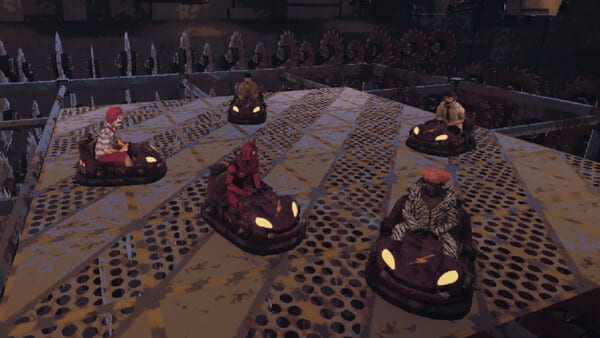
Uma sala privada é o jeito são de jogar Twisted Party com gente que você já conhece. Filas públicas existem, mas as noites de lançamento fluem melhor quando uma pessoa cria a sala, copia o código e cola no Discord oficial ou no grupo. Esta página cobre esse fluxo, o modo 2–4 versus oito cheios, e o voto que continua fora do jogo.
Crie a sala e compartilhe o código
No menu principal, crie um lobby e marque privado. O jogo mostra um código curto na tela da sala. Não há invite de overlay da Steam anunciado que substitua digitar. Os amigos escolhem entrar, colocam o código e aparecem na lista. Quem tem o código entra, então não cole debaixo de print público da Steam.
Só comece quando os nomes que você espera estiverem visíveis. Se alguém ficar com tela preta na inicialização, pare e mande para problemas de conexão. Recriar a sala depois de um init morto é mais rápido do que esperar um load congelado perdoar.
2–4 versus oito
A Vampire Squid atrasou o lançamento de 20 para 25 de agosto de 2026 para colocar um modo 2–4 e skins extras. Esse modo continua todos contra todos. Não é playlist de time. Existe para três amigos numa terça não precisarem caçar cinco estranhos.
Uma sala 2–4 é mais confortável: menos espectador, menos exclusão da cápsula, restart mais rápido. Oito cheios é mais barulho e mais chance de só um subconjunto entrar no blackjack, roleta ou escolhe-quem-vive — reviews descrevem três de cinco jogando de verdade. O planejador de festa trata 4–6 como o ponto doce se você consegue encher.
Você ainda não preenche 2–4 com bots. Assento vazio fica vazio. Quer caos, convide mais humanos.
Ainda não tem voto de minijogo
O pessoal continua pedindo para votar a roleta no Blindshot, pular Music Hero ou forçar Car Mode. Esse voto custom não está no jogo enviado. O anfitrião não ganha editor de playlist. Os cinco da roleta — Blindshot, Dynamite, Braincrab, Music Hero, Bumper Car — chegam como o jogo reparte. Os extras do intervalo ficam na cápsula de voto.
Se o grupo odeia Music Hero, o conselho honesto é rir junto, não caçar um toggle escondido de host. Fale no Discord se quiser que a Vampire Squid veja mais um post de voto. Não diga a host novo que ele perdeu uma aba de settings que não existe.
Hábitos de host que salvam a noite
Confirme Windows 10 Vulkan ou Apple Silicon macOS 15 antes de marcar — requisitos são curtos de propósito. Avise que Car Mode espera um empurrão e que disconnect nessa espera congelava a partida; o patch de playtest de 22 de julho de 2026 deve interromper. Se o vencedor do minijogo anterior sai antes do próximo, isso crashava; as mesmas notas dizem que foi corrigido. Mesmo assim, se o lobby morrer depois do pódio, recrie em vez de sentar numa sala fantasma.
Use Como jogar como o único link que você cola com o código. Como vencer só depois que todo mundo viu a roleta uma vez. E-mail de suporte mike.raw915@gmail.com se o fluxo do código estiver mesmo quebrado, não se o amigo digitou errado.
Hospedar não é fantasia de poder. Você é quem cola o código, escolhe um número de gente que o grupo consegue encher e recusa prometer um seletor de minijogo que a loja nunca enviou.
Perguntas frequentes
Respostas rápidas para as perguntas mais comuns.
Como os amigos entram na minha sala?
Crie uma sala privada, copie o código da tela do lobby e eles digitam em Entrar. Não há substituto anunciado para digitar o código.
O modo 2–4 é modo de time?
Não. As mesmas regras de último em pé com menos gente, adicionado no atraso para 25 de agosto de 2026.
O host pode votar quais minijogos aparecem?
Ainda não. O pessoal pediu um voto custom. O jogo enviado ainda reparte os cinco da roleta sozinho.